Installation
Adding apps to 3DEXPERIENCE
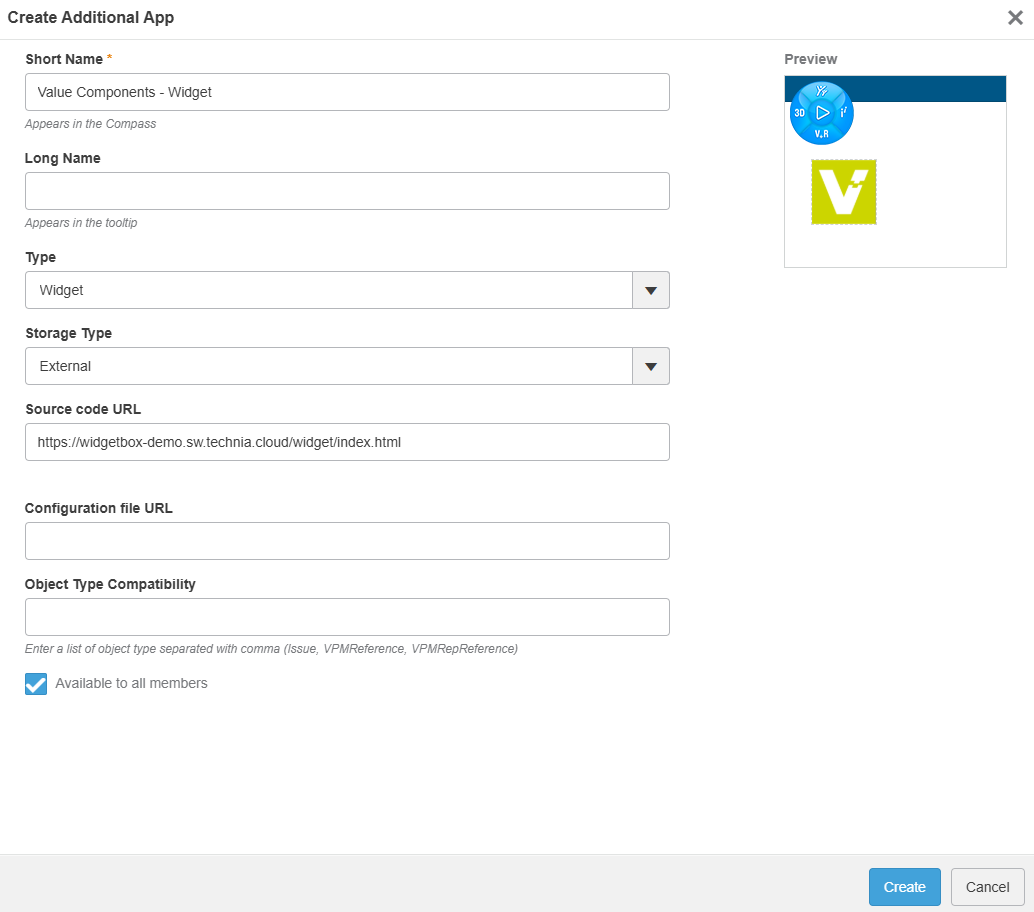
Adding apps is an integrated, documented and important part of the platform. To add and distribute apps you need admin rights which gives you access to the Platform Management dashboard. Navigate to the Members tab, scroll down to Additional Apps and click Create Additional App.
Filling out the create form
| Form Field | Value |
|---|---|
| Short Name | Enter the app name text to displayed in the compass |
| Type | Select Widget |
| Storage Type | Select External |
| Source code URL | Paste the hosting location of your widget e.g. https://widgets.technia.cloud/widget/index.html?company=AccountName&config=my-app-name.json Request parameters company used to identify you account when hosted by TECHNIA (SaaS). Option - if left empty the company (account) can be set from widget preferences. config used to point out a specific hosted configuration to be used with the app. Option- if left empty the app will display the TECHNIA store hosted configurations and specific configurations can be set from the widget preferences.hostedInPlatform must be set for on-prem hosted widgets |
Add app to dashboard
Open the compass, find the widget and drop it onto desired dashboard tab. At this stage you might have defined your company (account) information and config in the widget Source code URL and the app should be displayed.
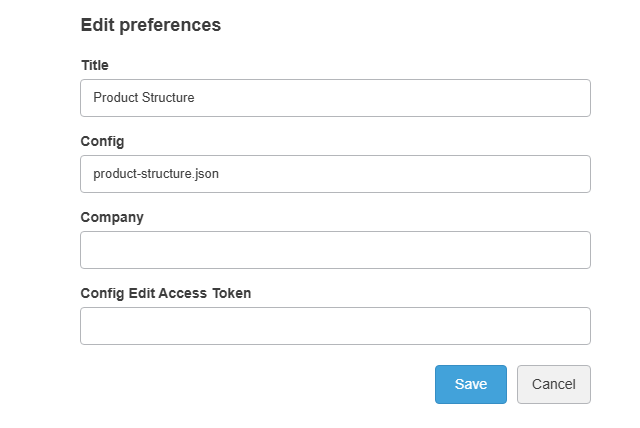
Specify app in preferences
If you did not define company and config in Source code URL, this can be set in edit widget preferences.
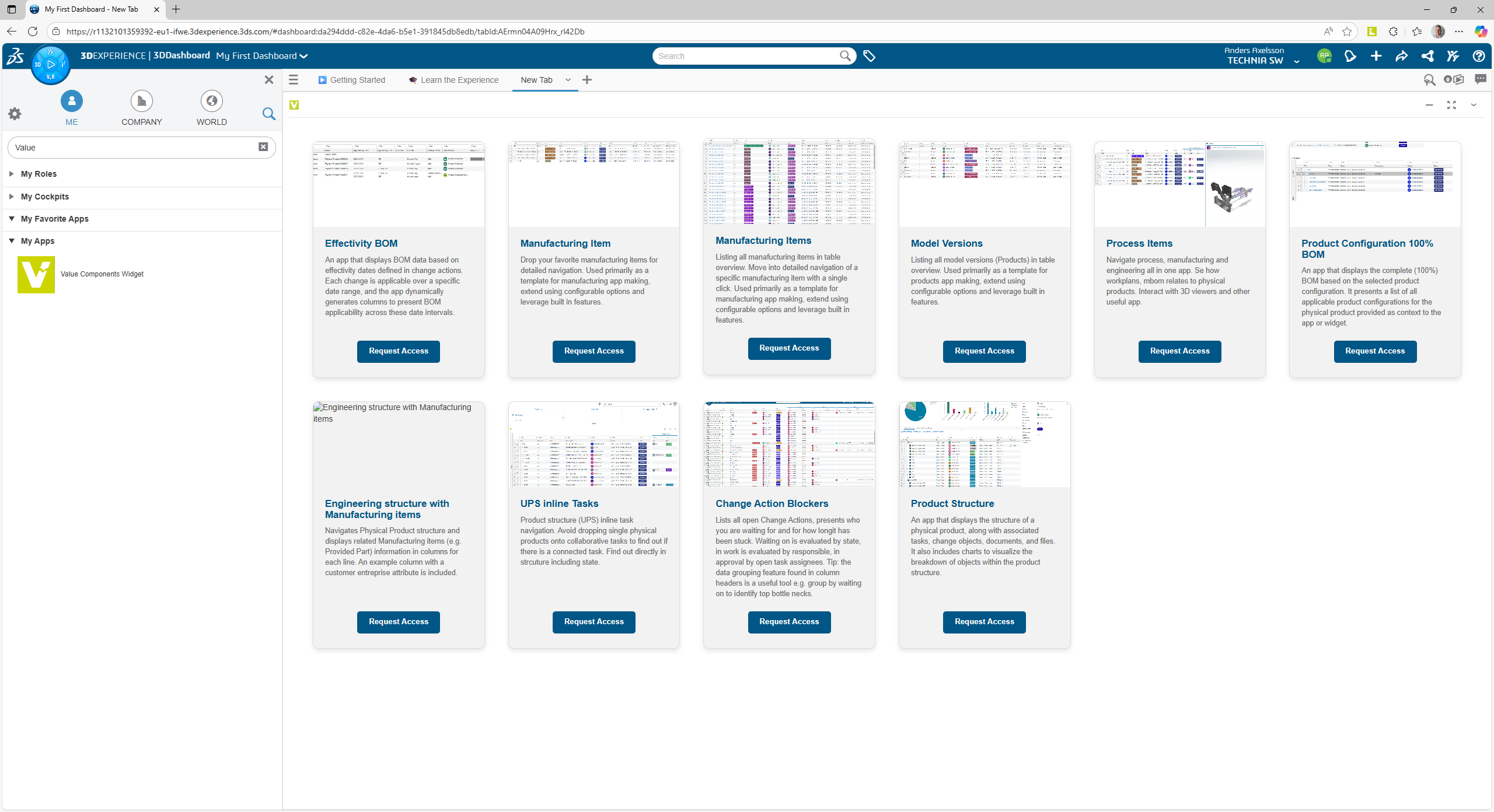
Example apps
In case you have not defined a specific app config the TECHNIA example app configurations will be listed.
Request Access will be displayed in case your company account is not defined and you will be presented with the APPID information and the option to send an email.
In case you are already setup with proper access you will find the Launch but and the selected app will simply launch in unpinned mode.
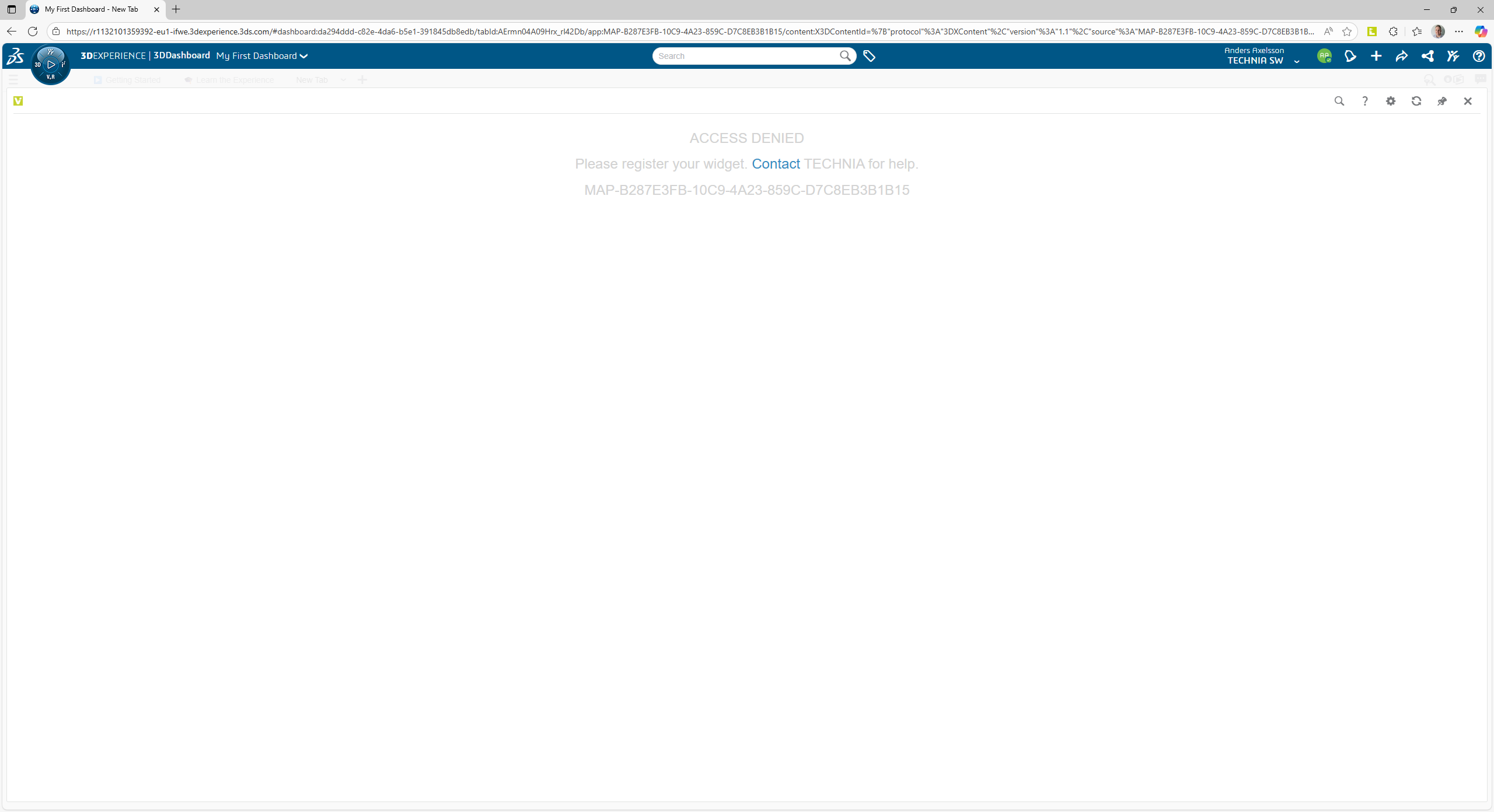
Register the widget with TECHNIA.cloud (SaaS)
APPID registration
Each 3DEXPERIENCE app will get a generated APPID that must be registered with your company account and config. The APPID is used to authorize configuration access and to measure use. As of now APPID's are registered by TECHNIA and the request must be shared with us. Clicking Contact will open your email client with the required information prefilled. The message is sent it manually.
On-prem setup
Prerequisites
- TVC should be available on 3DEXPERIENCE on-prem system
- tvc-core JARs with valid license files should be present
- See TVC Installation Guide for details on TVC Installation
For 3DEXPERIENCE on-prem systems the widget can be hosted within that infrastructure. An on-prem installation also brings the possibility of API extensions.
The installation media and license keys for an on-prem installation is available in your https://products.technia.com account.
To install simply expand the tvc-widgetbox-VERSION.war on top of 3dspace.
When adding on-prem hosted widgets, the Source code URL must include the request parameter hostedInPlatform=true
Installation footprint
3dspacewebappstvc-widgetboxconfigsresources
WEB-INFlibtvc-widgetbox-<version>.jarjackson-dataformat-xml-2.14.3.jarfreemarker-2.3.33.jar